
VFUSION RESOURCE MANAGER
Your storage. In full view.
From the whole cluster to a single drive. VFusion Resource Manager brings your storage systems, capacity, connectivity and hardware health into one clear management interface.
START WITH THE WHOLE ESTATE
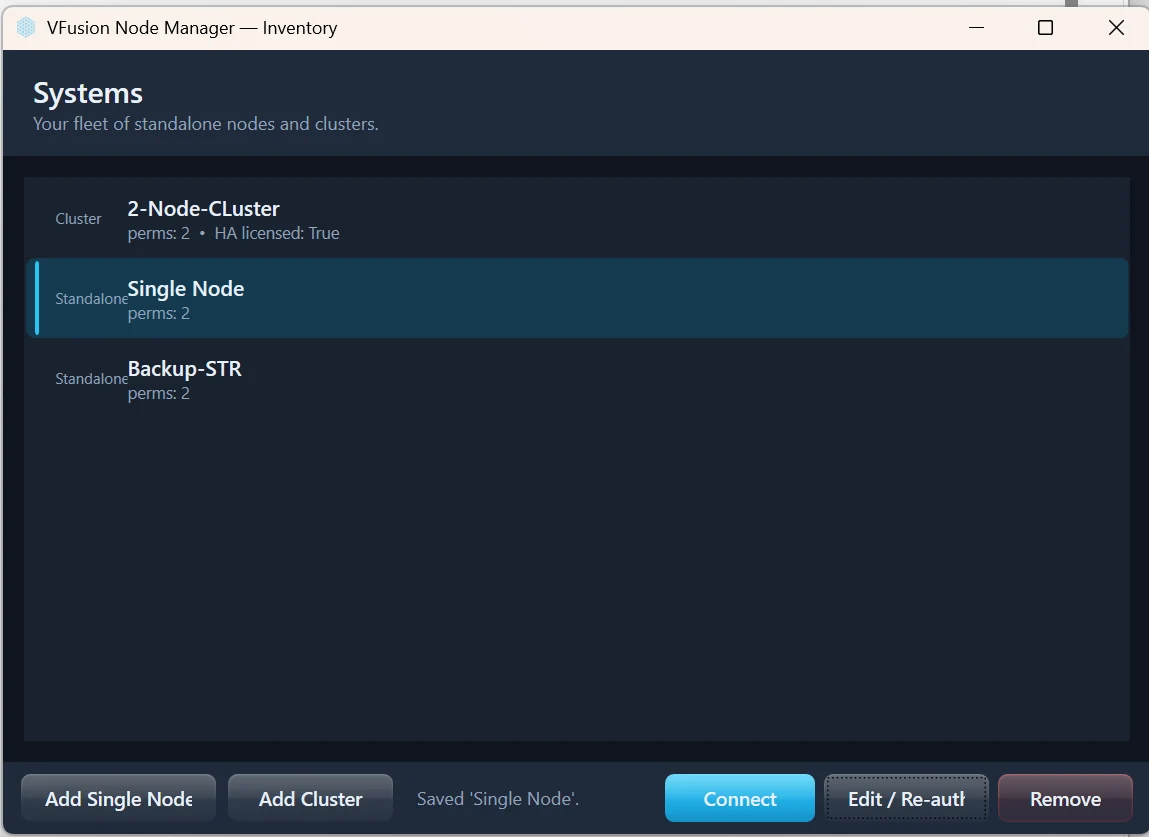
One place to find your systems.
Keep standalone nodes and high-availability clusters together in a system inventory. Select the environment you want to work with, then move into its storage resources and health views.
- 01
Choose your system
Open the cluster or standalone node you need.
- 02
Understand its state
Review health, capacity, disks and connectivity.
- 03
Manage its resources
Work with pools, virtual IPs and NVMe-oF targets.
EXPLORE THE INTERFACE
See the detail. Keep the overview.
Move through the core management views. Select a screen to take a closer look.
01 / RESOURCE MANAGER
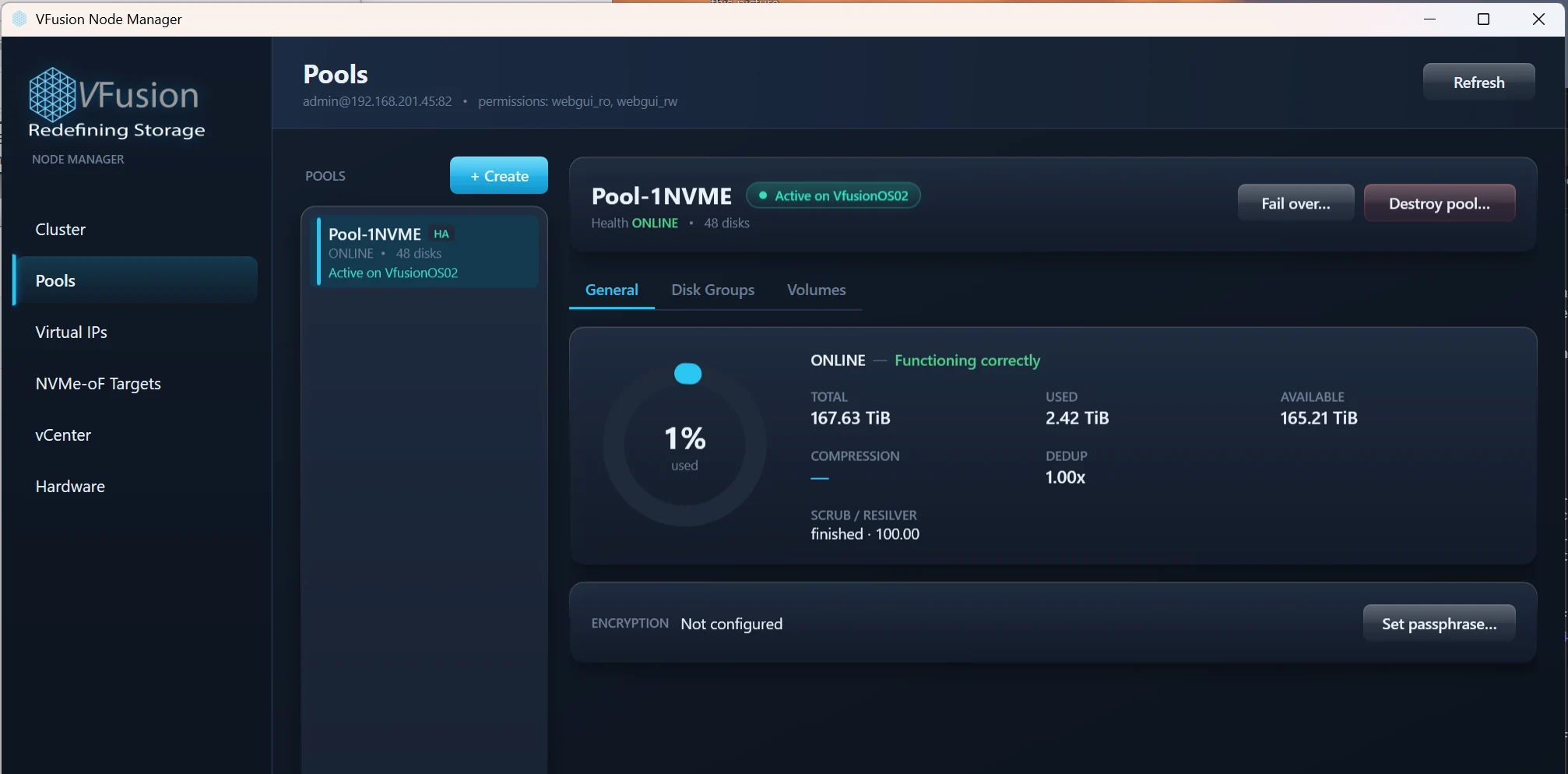
Know what you have. See what is available.
Bring pool health, used and available capacity, disk groups and volumes into the same workflow. In an HA configuration, see which node currently owns the pool.
- Pool overview with capacity and health
- Disk groups and volumes within each pool
- Visible ownership and failover controls for HA pools
 Enlarge image
02 / RESOURCE MANAGER
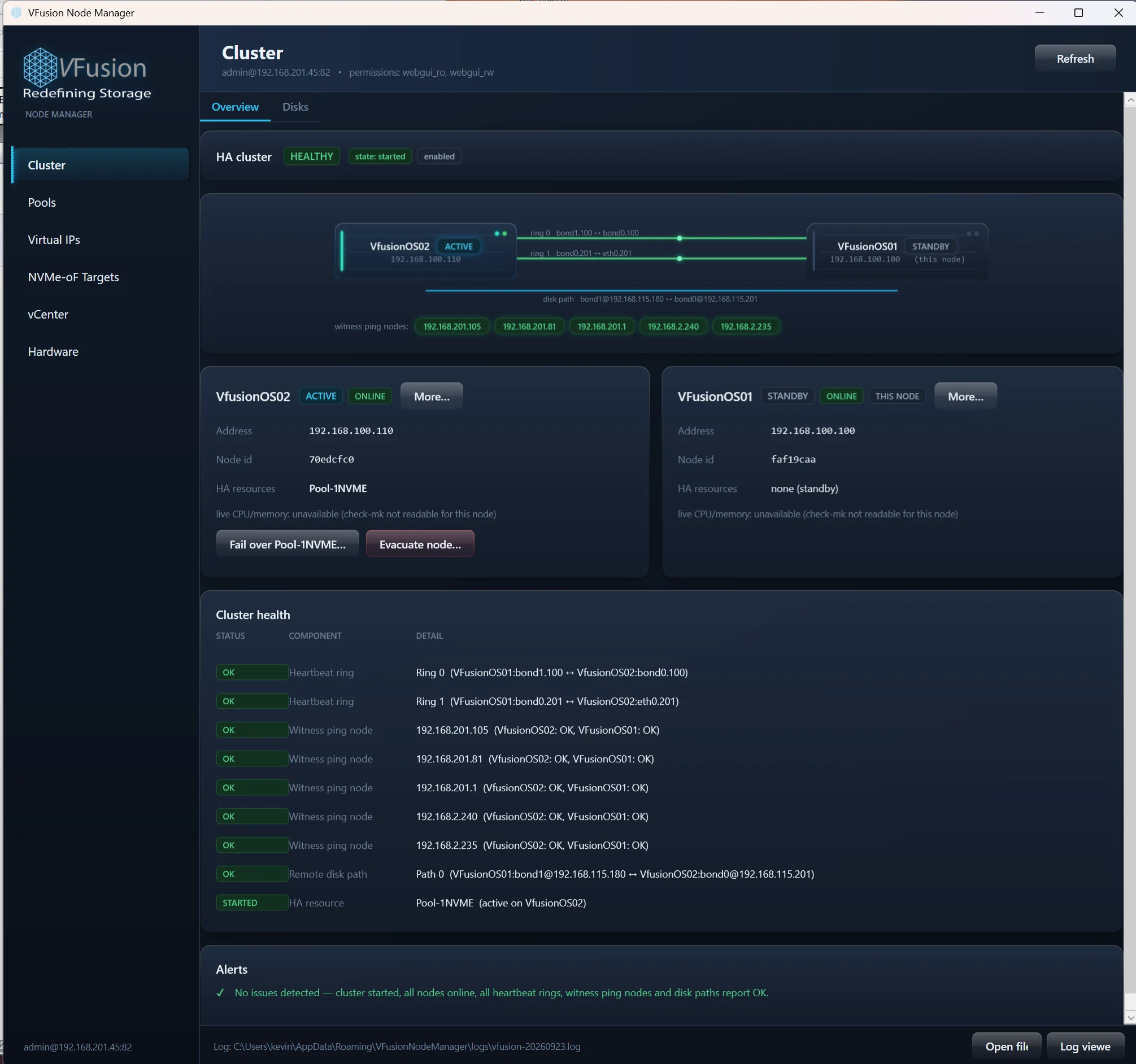
Understand both sides of the cluster.
See the active and standby nodes, heartbeat rings, witness checks and disk path in a single topology view. The health list keeps individual checks and reported alerts visible alongside the diagram.
- Active and standby node roles
- Heartbeat, witness and disk-path status
- Pool failover and node evacuation controls
 Enlarge image
03 / RESOURCE MANAGER
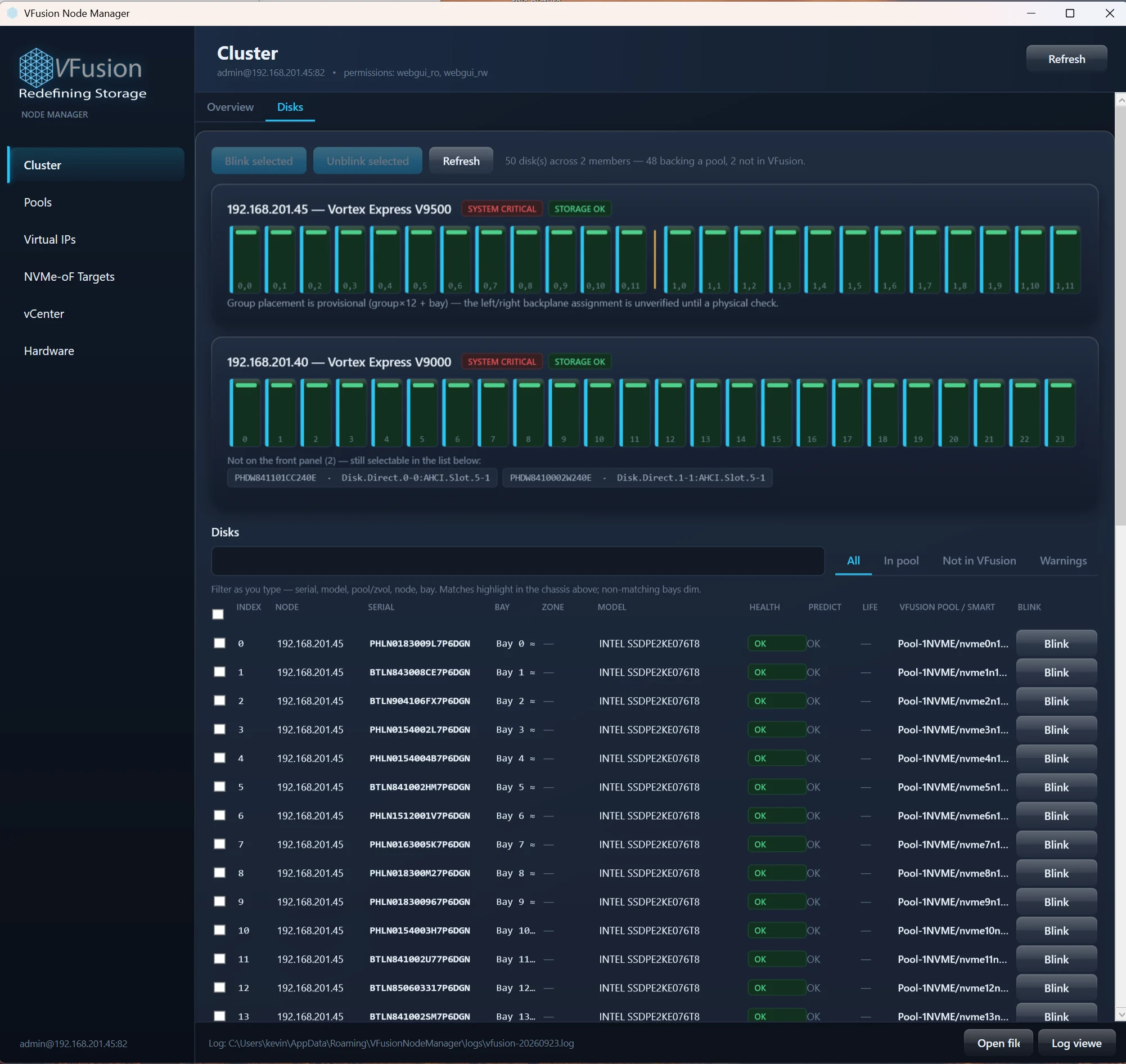
Connect a disk record to the hardware.
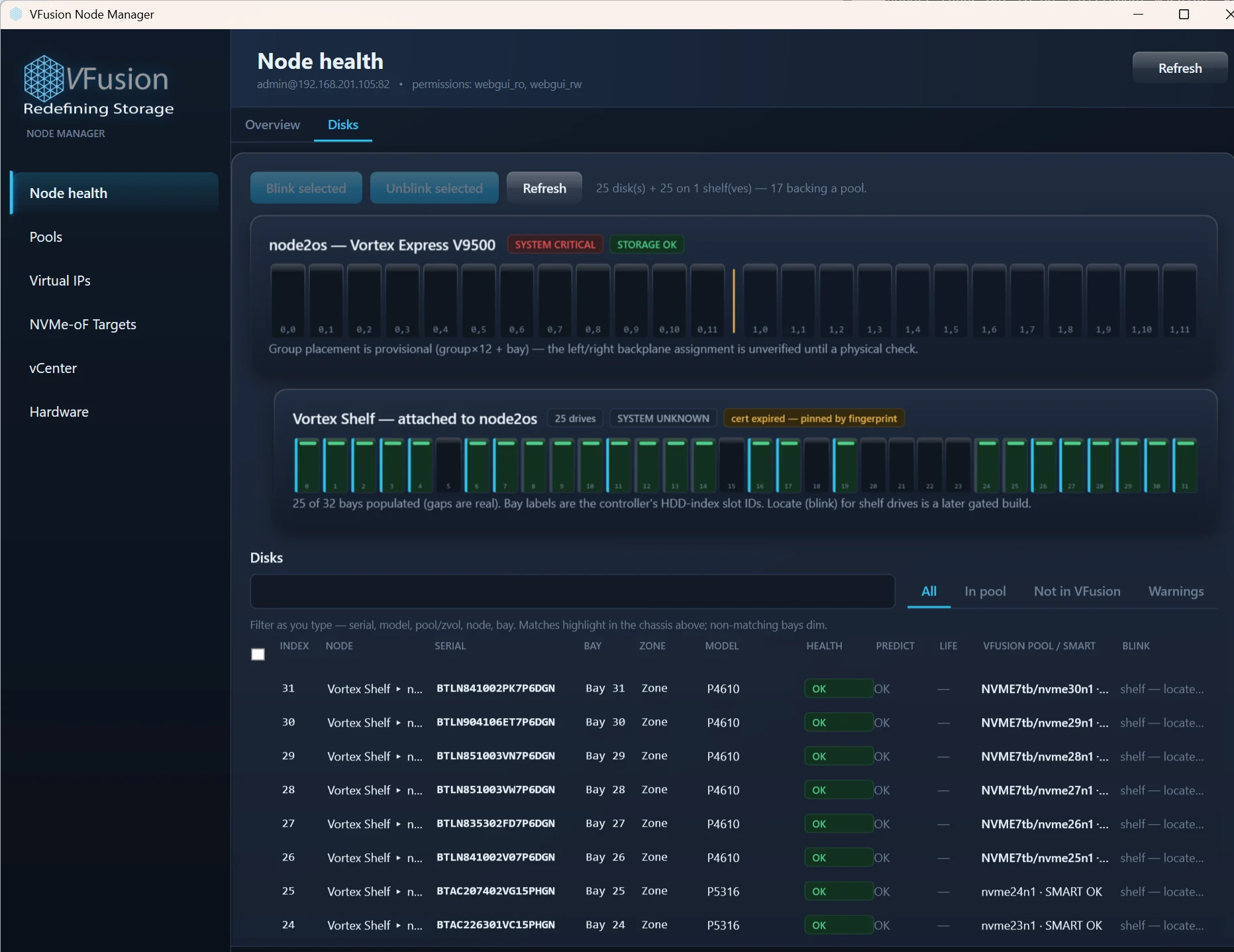
Move from a chassis overview to an individual drive. Filter the inventory by serial, model, pool, node or bay, and inspect drive health together with storage membership.
- Chassis and bay visualisation
- Searchable disk inventory and pool membership
- Locate controls for supported drives
 Enlarge image
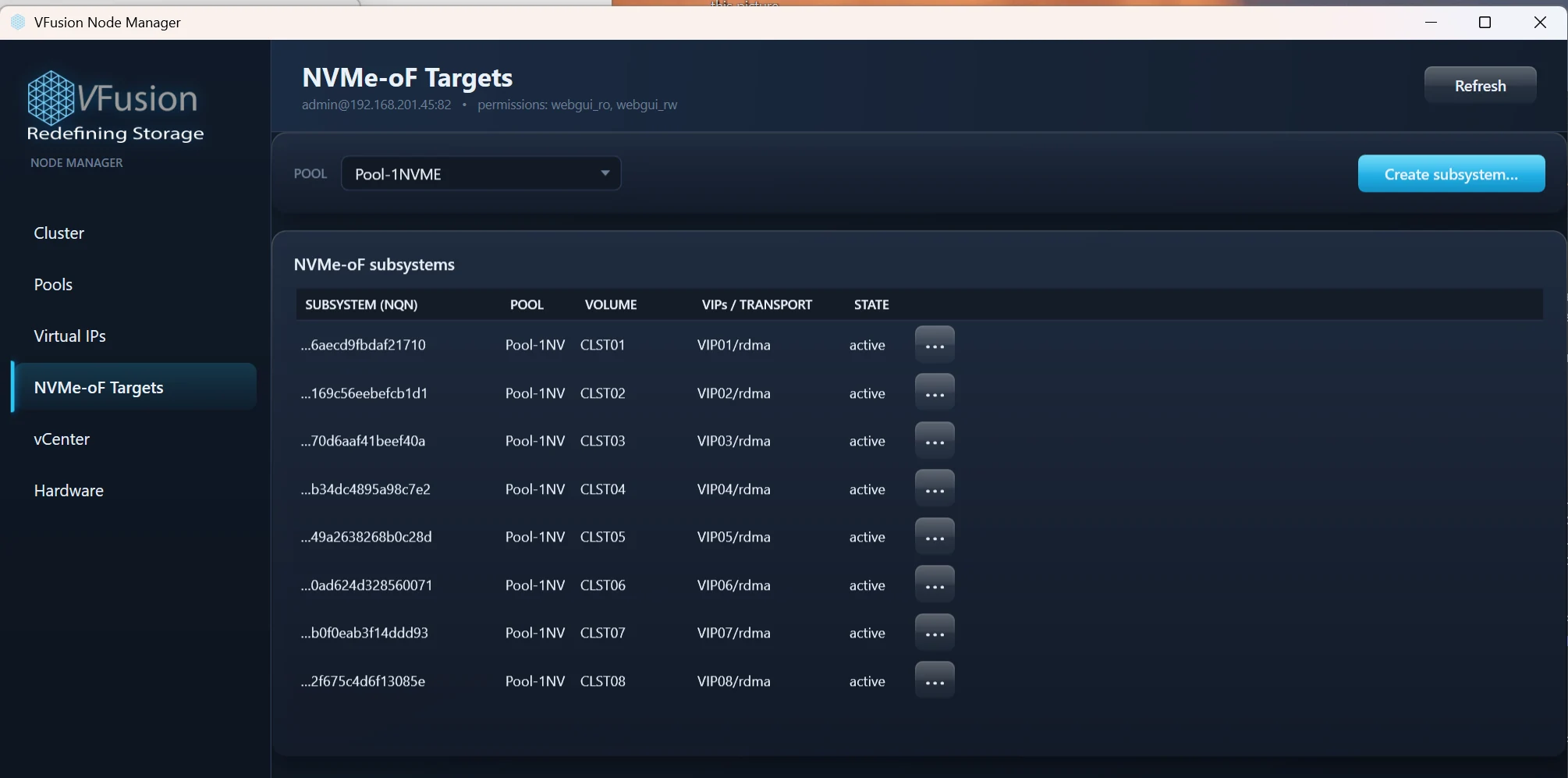
04 / RESOURCE MANAGER
Follow the connection to the volume.
Inspect NVMe-over-Fabrics subsystems alongside their pool, volume, virtual IP and transport. Keep the storage presentation visible as you configure and review target resources.
- Subsystem identifiers and active state
- Pool, volume and VIP relationships
- Transport visibility, including the shown RDMA connections
 Enlarge image
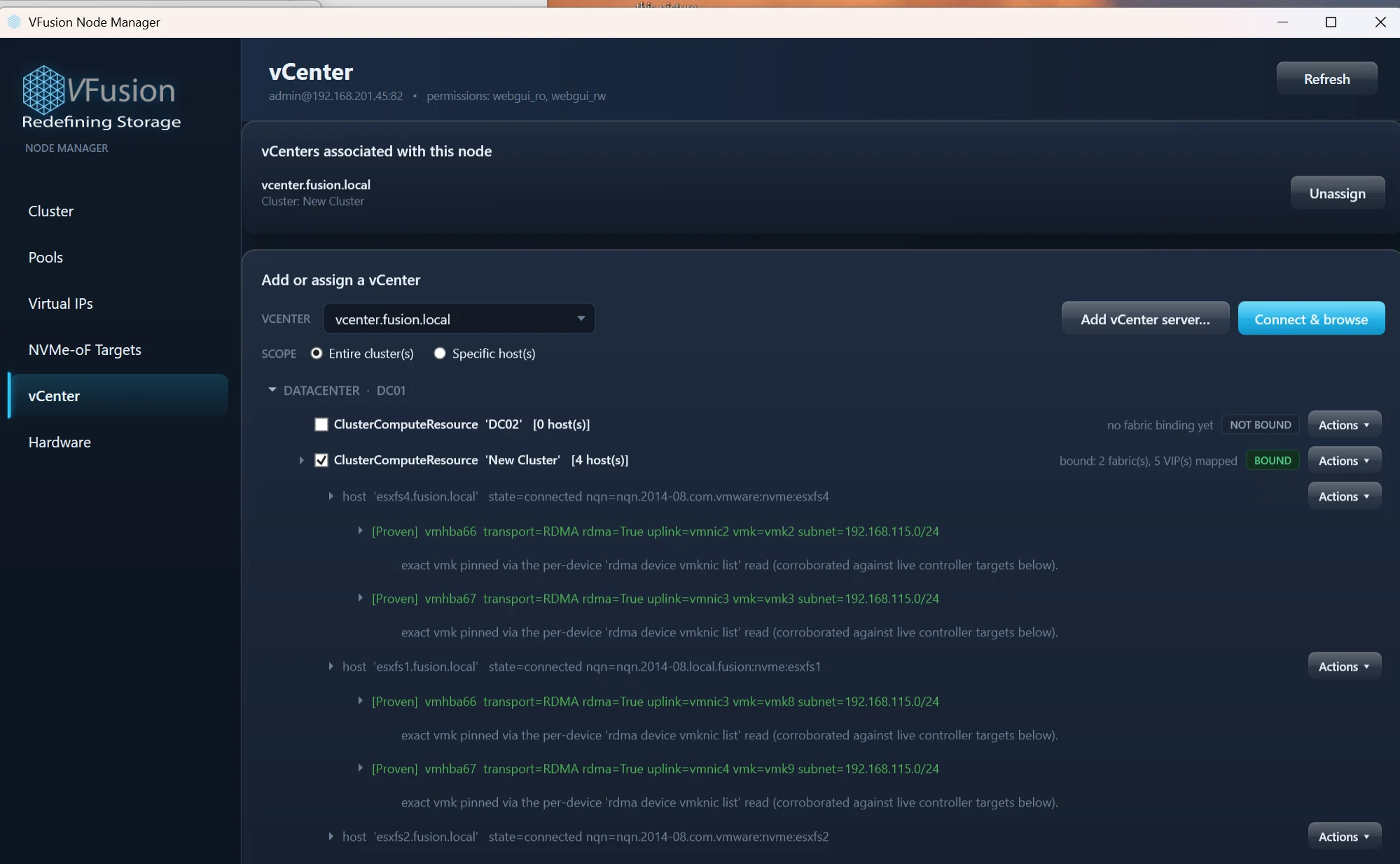
05 / RESOURCE MANAGER
Bring the virtual environment into view.
Browse associated vCenter environments and select clusters or individual hosts. Inspect the host adapters, fabric bindings and VIP mappings that connect the virtual estate to storage.
- Cluster or individual-host scope
- Host and adapter connection details
- Fabric bindings and mapped virtual IPs
 Enlarge image
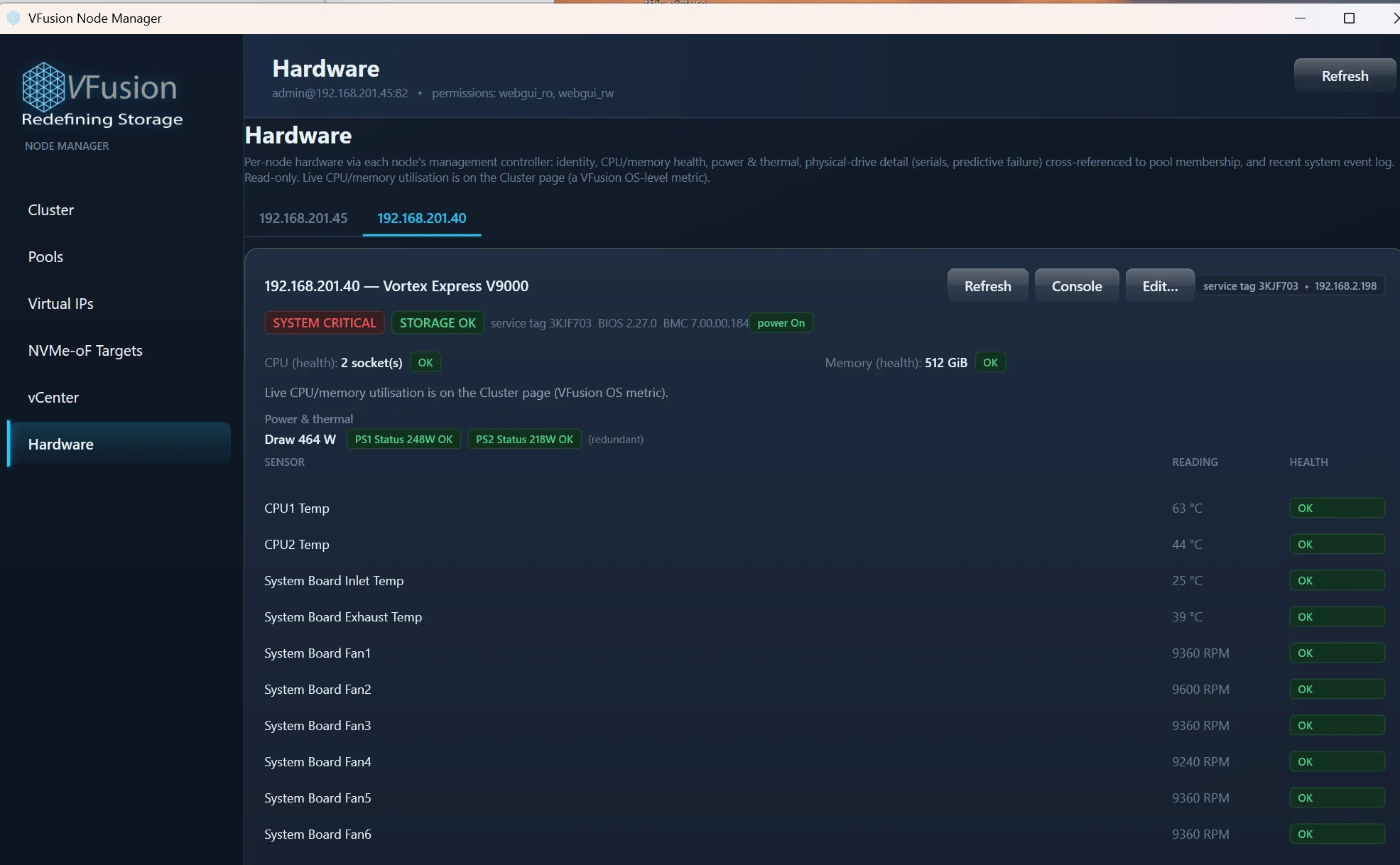
06 / RESOURCE MANAGER
Look beyond the storage status.
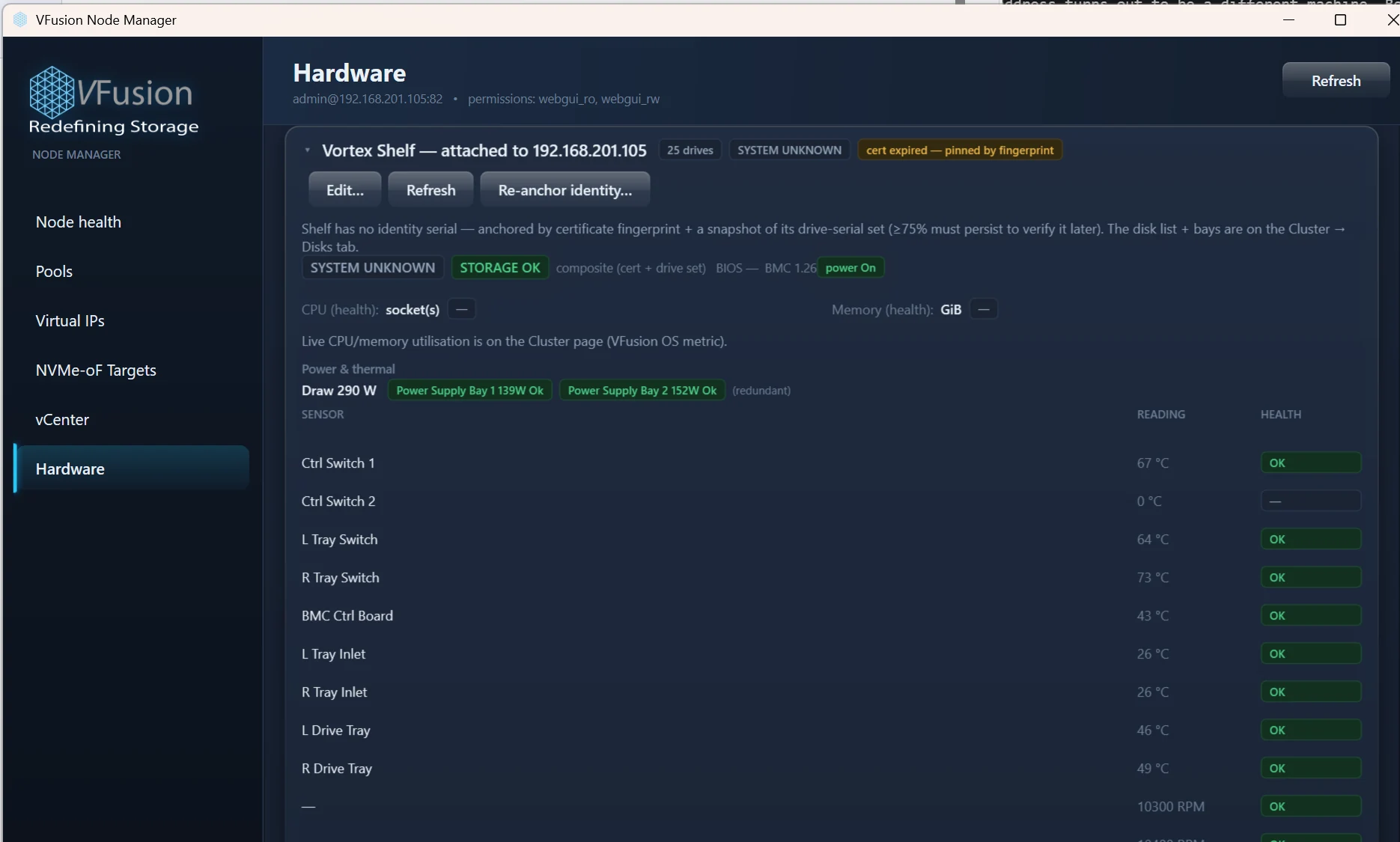
See the hardware information reported by each node’s management controller. CPU and memory health, power supplies, temperatures and fan readings add the physical context behind the storage view.
- Separate system and storage health indicators
- Power, thermal and fan sensor readings
- Node identity and management-controller information
 Enlarge image
FROM CLUSTERS TO EXPANSION SHELVES
The right detail for each environment.
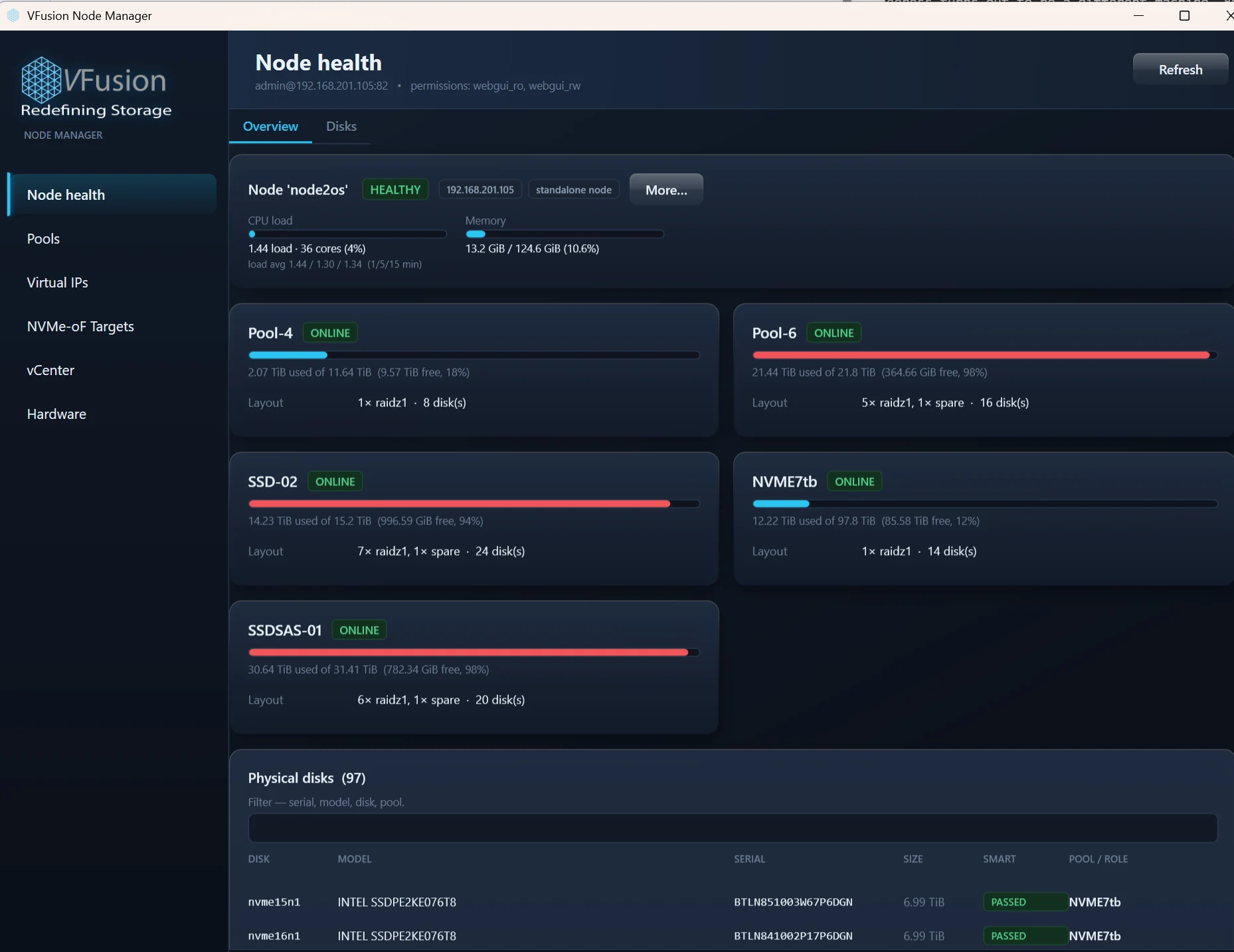
The interface adapts to the system you are managing. Standalone nodes expose their own resource usage and pools, while expansion-shelf views add the drives and sensor information reported by the attached hardware.
Explore five more product screens
 Enlarge
Standalone node health
CPU load, memory use, pool utilisation and physical-disk information in the node overview.
 Enlarge
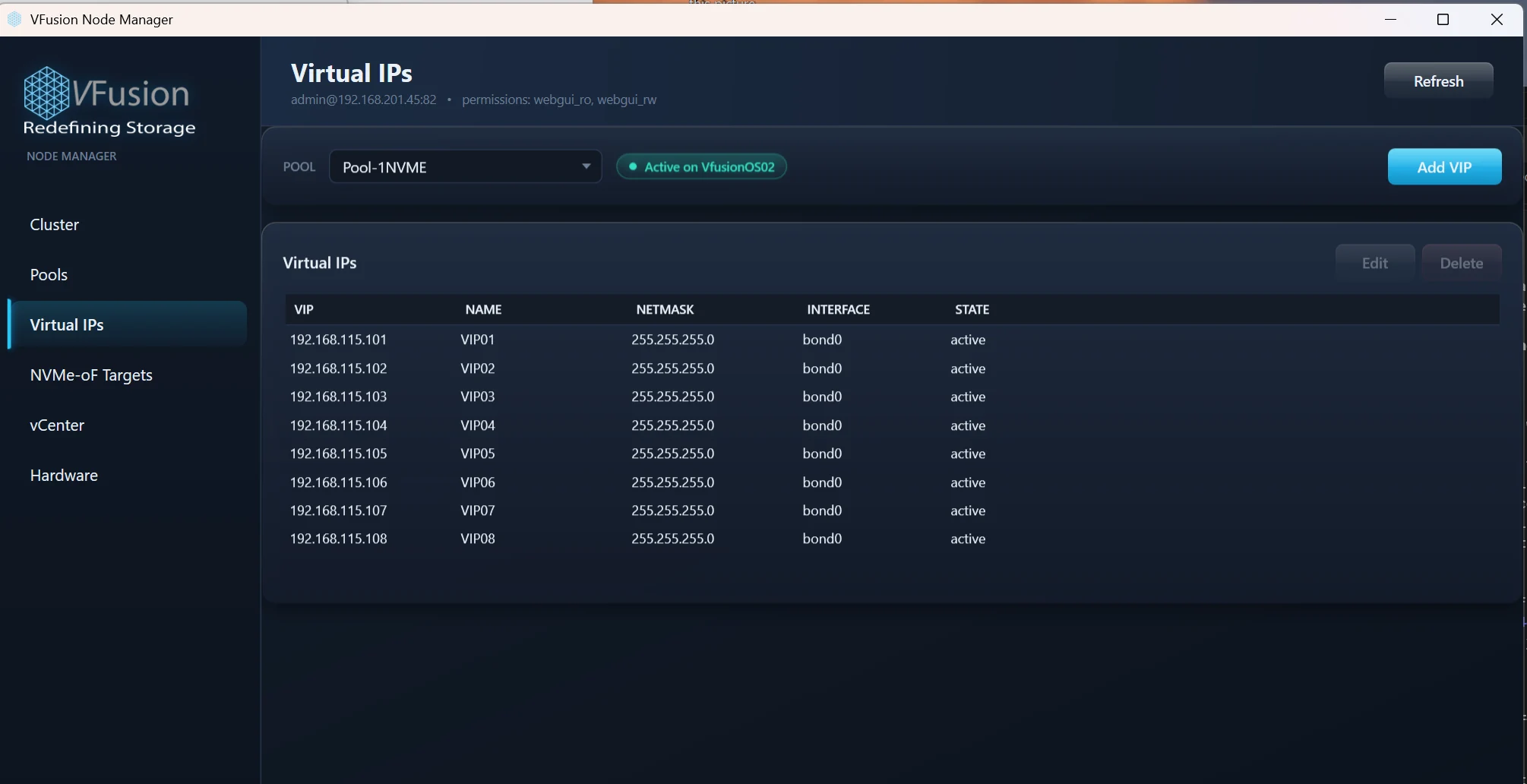
Virtual IP management
Review a pool’s virtual IP addresses, interfaces and active state.
 Enlarge
Attached shelf inventory
See populated drive bays and the shelf disks associated with the node. Locate availability depends on the device and software support.
 Enlarge
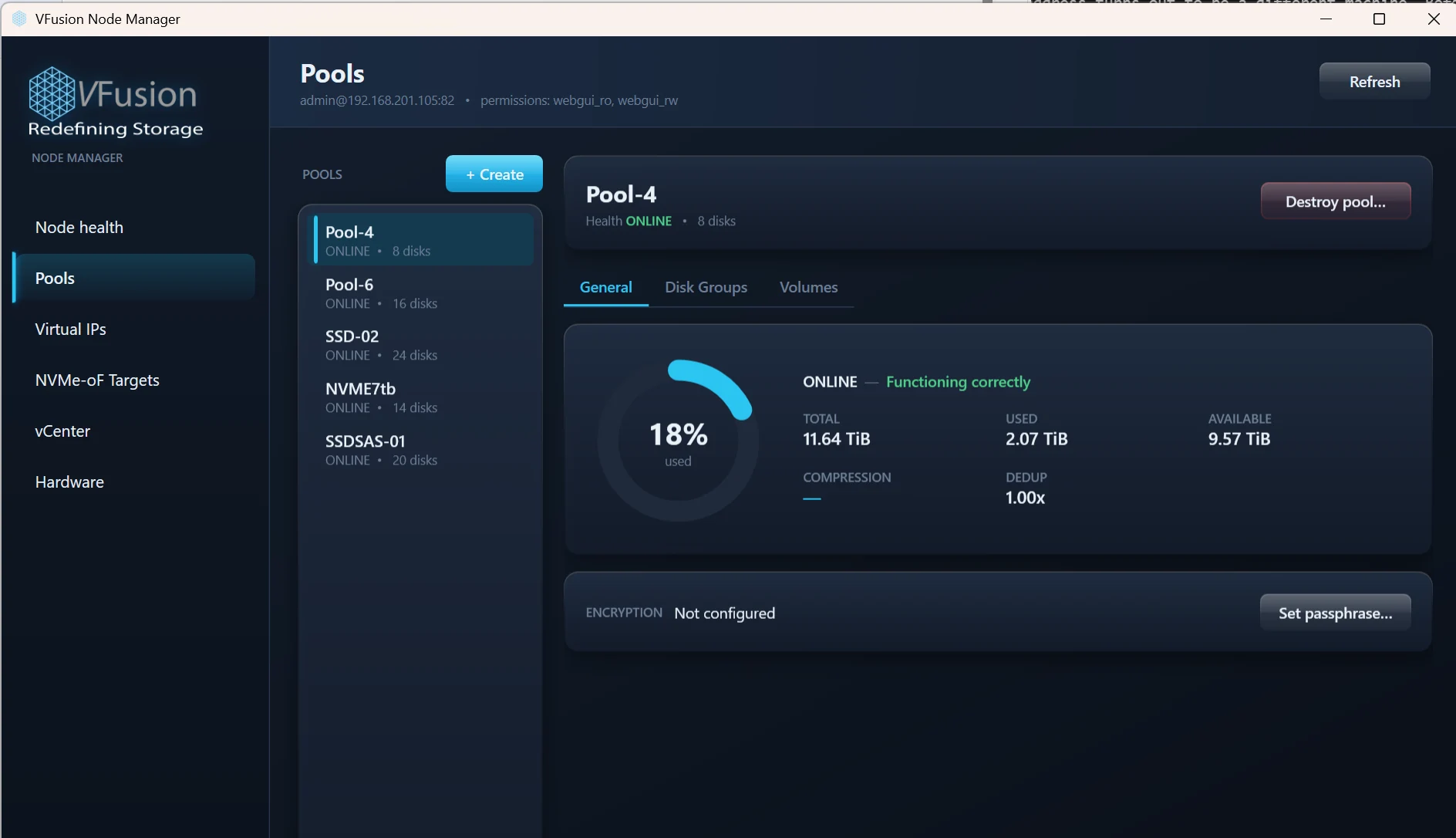
Multiple storage pools
Move between pools to inspect their capacity, health, disk groups and volumes.
 Enlarge
Shelf hardware readings
Inspect reported power supply, thermal and fan readings alongside the shelf’s status and identity information.
Real application screenshots, captured on 23 September 2026. The application is labelled “VFusion Node Manager” in these screens. Addresses, capacity figures, alerts and configuration states belong to the captured environment.
EUROPEAN TECHNOLOGY. PRACTICAL CONTROL.
Keep operational knowledge in your hands.
In-housing technology also means understanding and operating it. Resource Manager gives your team a direct view of the VFusion infrastructure it manages: the systems, the resources and the connections your services depend on.
It is one part of a wider European infrastructure design, alongside agreed data location, administrative access, recovery and migration arrangements.
Our approach to digital sovereigntyResource ManagerVISIBILITY + MANAGEMENT
YOUR INFRASTRUCTURE. YOUR OPERATIONAL KNOWLEDGE.
BEFORE WE MEET
A few useful answers.
What does VFusion Resource Manager manage?
It provides a management interface for VFusion storage systems, covering standalone nodes and HA clusters, storage pools, physical disks, virtual IPs, NVMe-oF targets, associated vCenter environments and reported hardware health.
Can I see both standalone systems and clusters?
Yes. The system inventory shown includes both standalone nodes and a two-node HA cluster. Each environment opens its corresponding management and health views.
Does it show the physical disks and expansion shelves?
The supplied views show chassis and shelf bay layouts, searchable drive records, health information and pool relationships. Exact inventory, sensors, bay mapping and locate support depend on the hardware and software configuration.
How does it work with vCenter?
The vCenter view supports browsing clusters and individual hosts, then reviewing host adapters, fabric bindings and virtual IP mappings. We can demonstrate the supported workflow for your VMware environment.
Can we see it with our own storage requirements?
Yes. Talk to the VFusion team about your systems, workloads and availability requirements. We can walk through the relevant management views and agree the features, hardware support and configuration for your deployment.
SEE YOUR NEXT STORAGE WORKFLOW
Let’s put your infrastructure in view.
Tell us about your storage environment. We’ll show you how Resource Manager fits the way your team works.